Design a schema
A schema is the data shape behind everything OpenBuild stores: the fields the Data widget shows, the columns in a list, the body of an API response. OpenBuild uses standard OpenRegister schemas, so anything you define here is reachable through OpenRegister's API the moment you save.
Goal
By the end you will have added at least one property to a schema in your app — picked its type, marked it required if appropriate, and saved.
Prerequisites
- A virtual app you can edit (the seed app is fine; otherwise clone from a template — see Create an application from a template).
- A rough idea of the data shape — what fields each record needs.
Two ways to manage schemas
- In-app (recommended) — open your app and click Edit with OpenBuild → Edit data…. From there you pick (or create) the app's register and add / edit / remove its schemas without leaving the app.
- Schema designer — the fuller editor at
/apps/openbuild/builder/<slug>/schemasgives a properties table plus a live JSON/preview panel. Use it for heavier schema work.
Steps
-
Open the schema editor. Either click Edit with OpenBuild → Edit data… in your running app, or open the schema designer at
/apps/openbuild/builder/<slug>/schemas.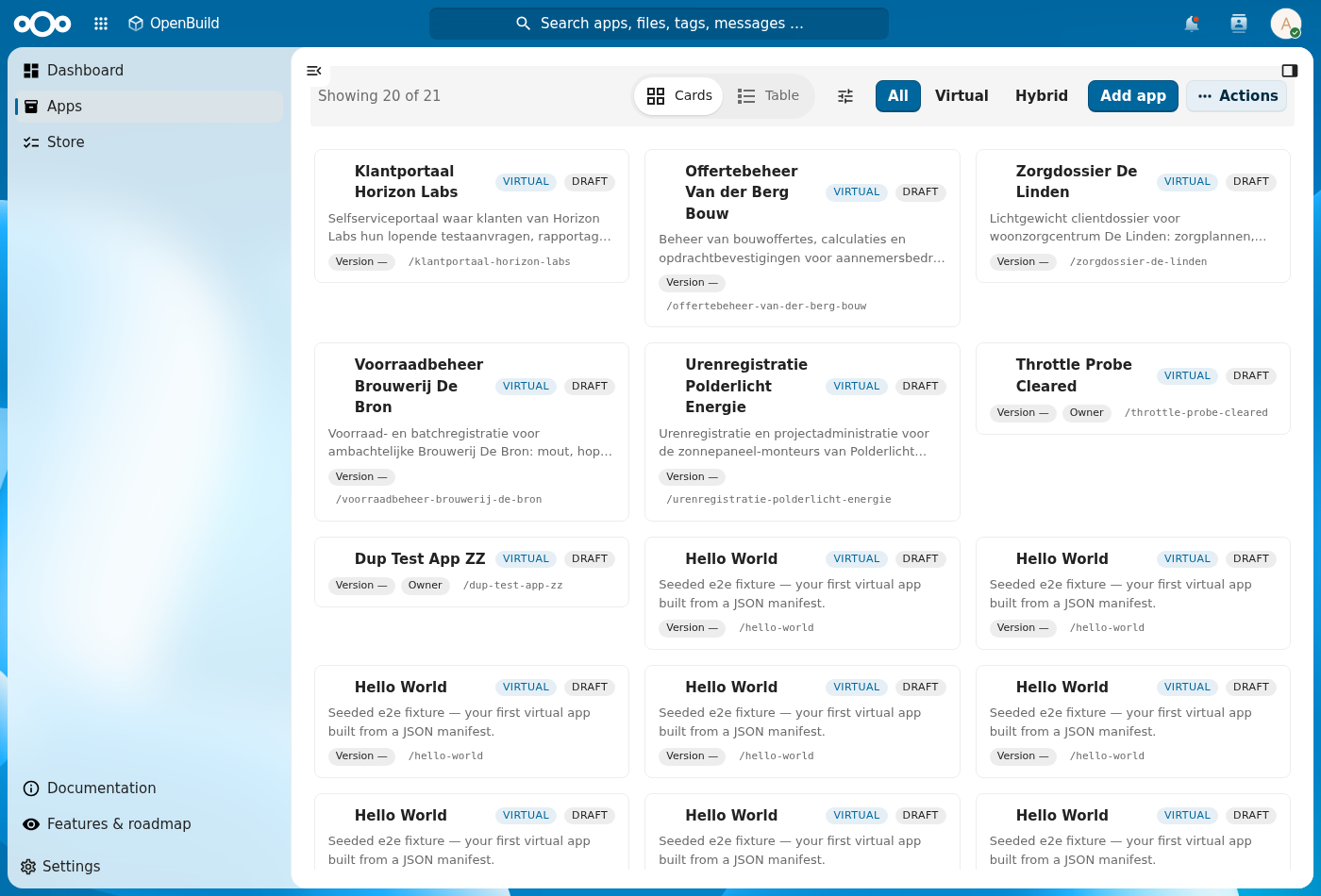
-
Pick or add a schema. Choose an existing schema, or Add schema to create one.
-
Add a property. Give it a name (
title,status,dueDate, …), pick a Type (string, integer, boolean, date, array, object, reference), and tick Required if it must always have a value. -
References. For a reference, pick the target schema. OpenBuild stores references as
@self.idlinks; surfaces like the Object relations widget and form pickers resolve them automatically. -
Save. The schema is written to OpenRegister and is immediately usable — the Data widget on a detail page picks up the new property, and you can configure where it shows via the widget's cog (see Build your app in-app).
Verification
The schema is good when: it appears in the editor with no error badge, the JSON preview validates, and the new property shows up on the Data widget (or in a form) once you reopen the app.
Common issues
| Symptom | Fix |
|---|---|
| Save errors "property name must be unique" | A property by that name already exists — rename or reuse it. |
| Type → Reference is empty | No other schema exists in this register yet — create one first. |
| The JSON preview shows errors | Invalid JSON Schema — read the message at the bottom of the panel (usually a misspelled type or a required-without-property). |
Reference
- Build your app in-app — turn the schema into a page and choose which fields show.
- Connect external data — read from a register or connector.