Build your app in-app
You build and refine an OpenBuild app from inside the running app. Every page carries an Edit with OpenBuild button (the orange cube, top-right). From there you turn the page into an editable grid, add and configure widgets, and manage the app's pages, menu, sidebar and data — live, with no separate build step.
Goal
By the end you will have switched a page into edit mode, added and configured a widget, rearranged the grid, and saved — all in-app.
Prerequisites
- An OpenBuild app you can open (from a template or blank — see Create from a template).
- At least one schema so pages have data to show (see Design a schema).
The Edit with OpenBuild menu
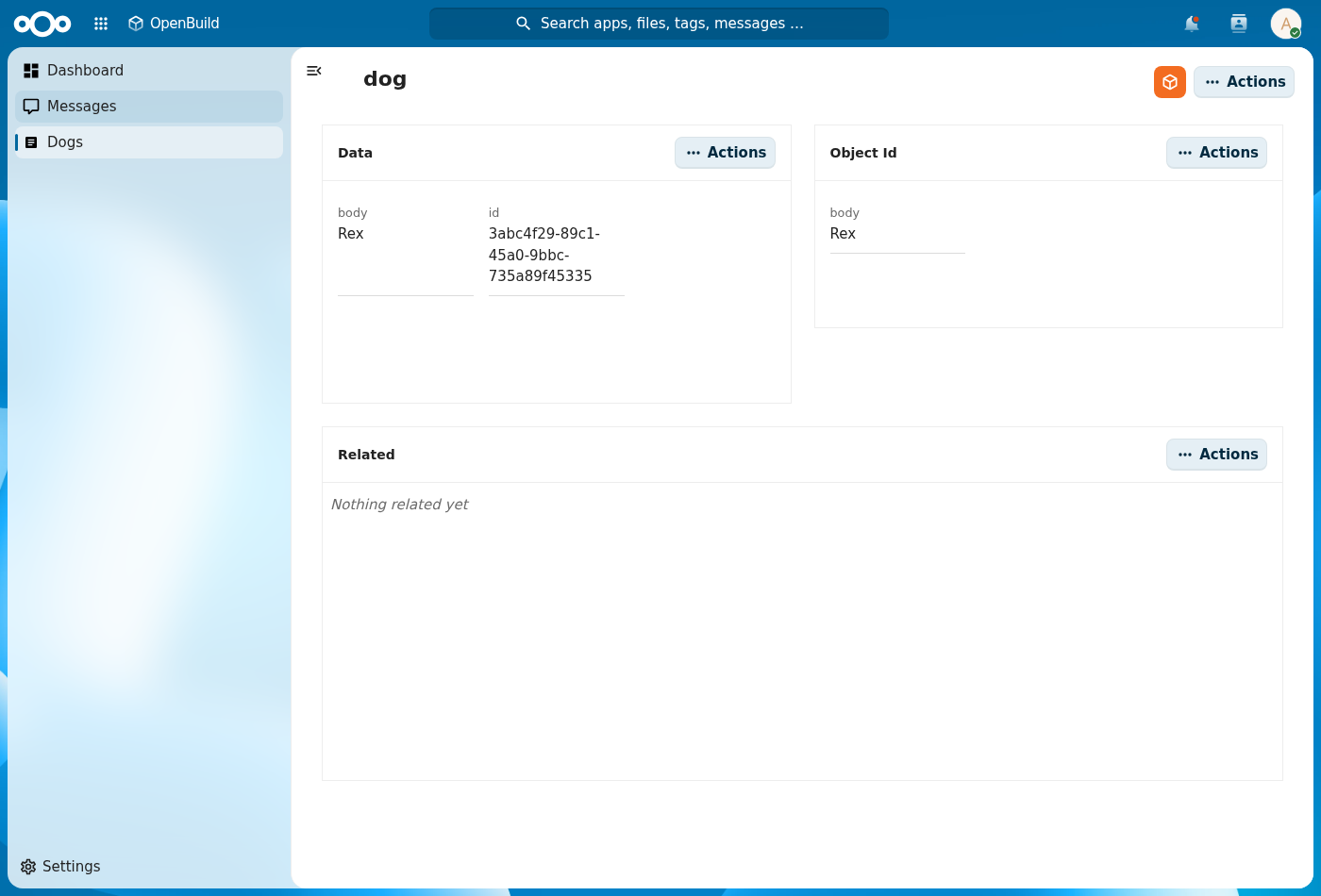
Open any page of your app and click the orange Edit with OpenBuild cube.
The menu offers:
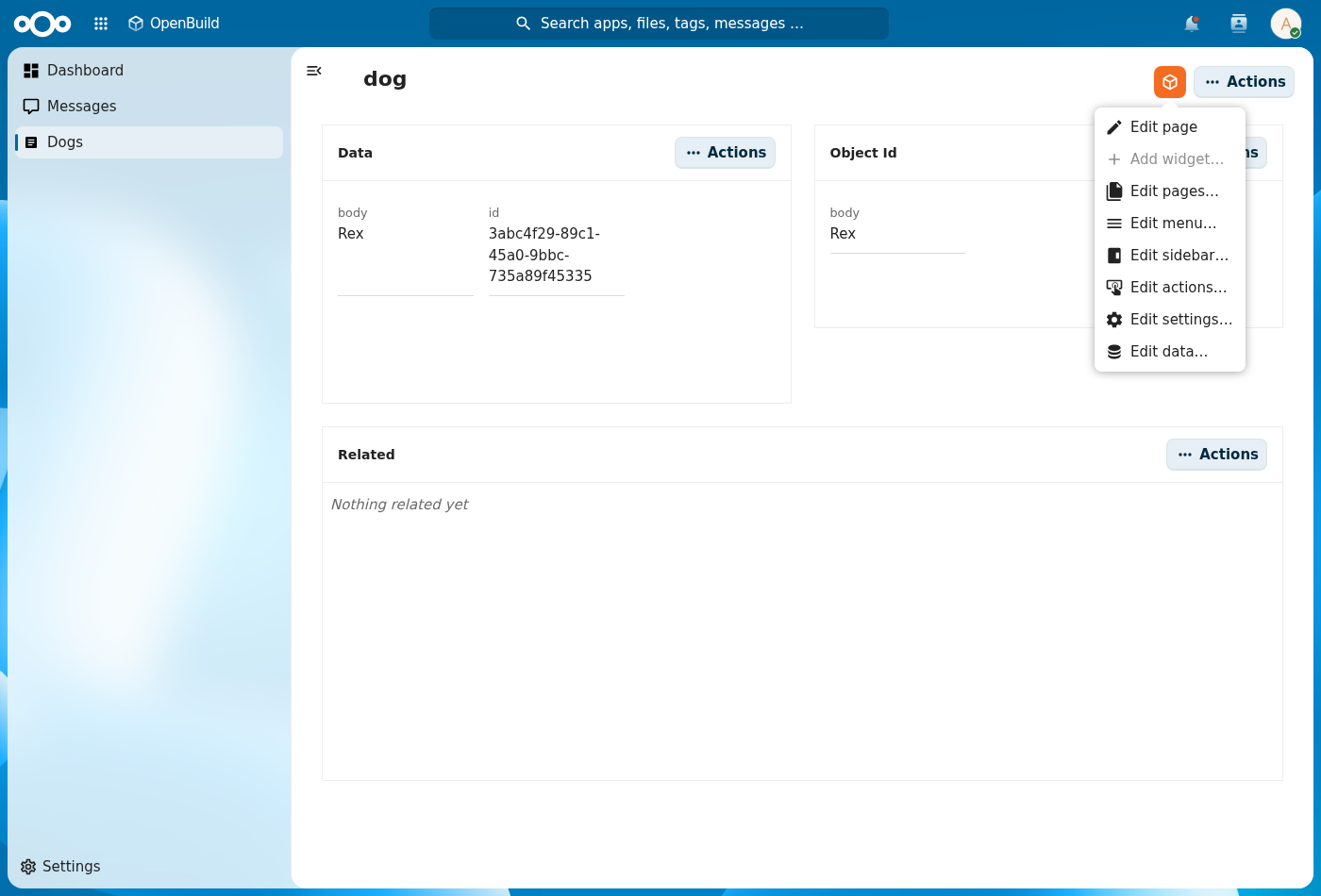
| Item | What it does |
|---|---|
| Edit page | Turns the current page into an editable grid (drag / resize / configure). |
| Add widget… | Adds a widget to the current page (enabled while editing). |
| Edit pages… | Add, rename, retype and route the app's pages. |
| Edit menu… | Manage the navigation menu and its sections. |
| Edit sidebar… | Configure the object sidebar tabs. |
| Edit actions… | Configure page-level actions. |
| Edit settings… | Configure the app's settings page. |
| Edit data… | Manage the app's register and its schemas. |
Steps
-
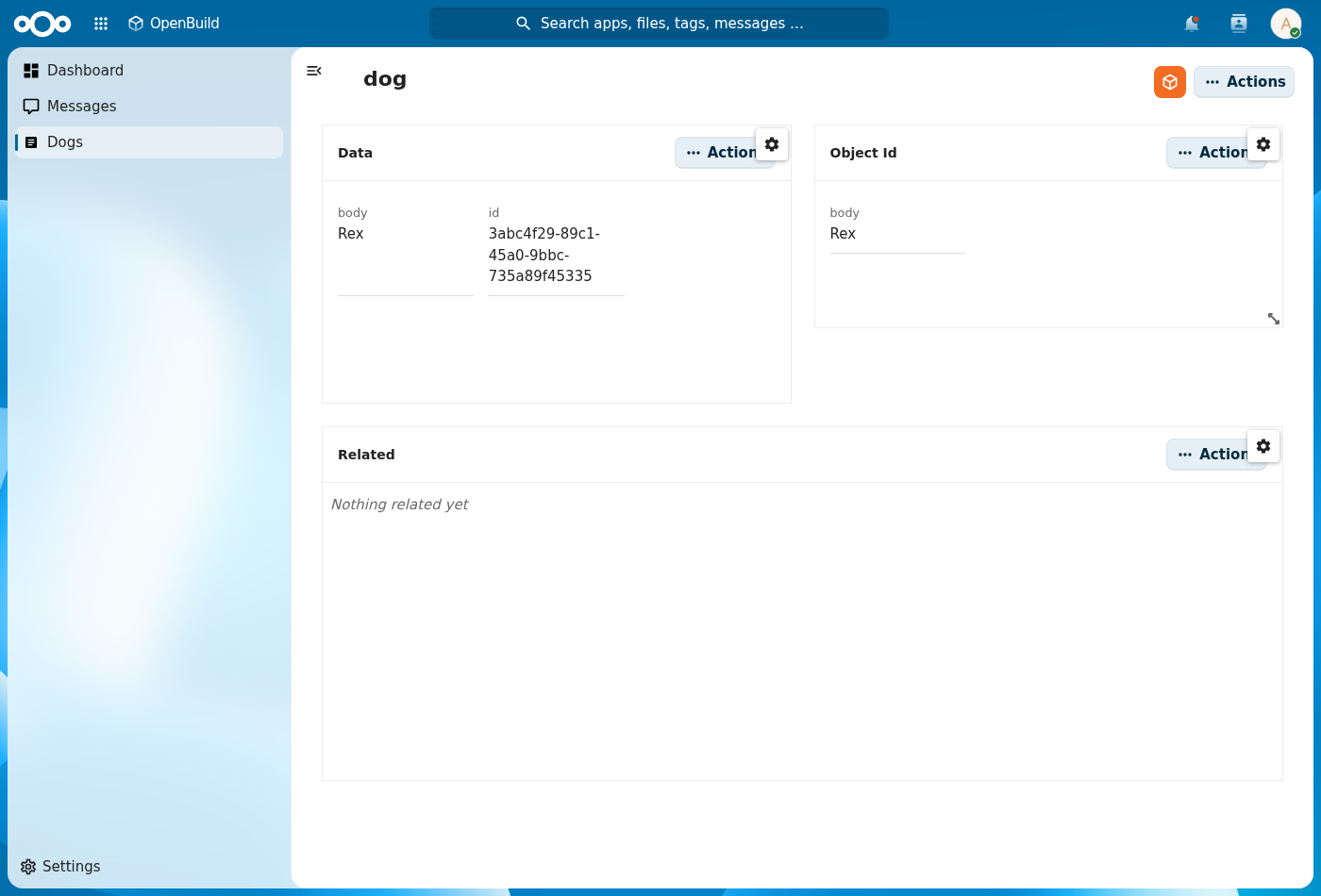
Enter edit mode. Click Edit with OpenBuild → Edit page. The page body becomes a drag-and-drop grid: each widget gets resize handles and, where it's configurable, a cog in its corner. A detail page starts with the Data and Related widgets by default.
-
Rearrange. Drag a widget to move it, drag its corner to resize. The grid is a real 12-column layout — widgets reflow as you go.
-
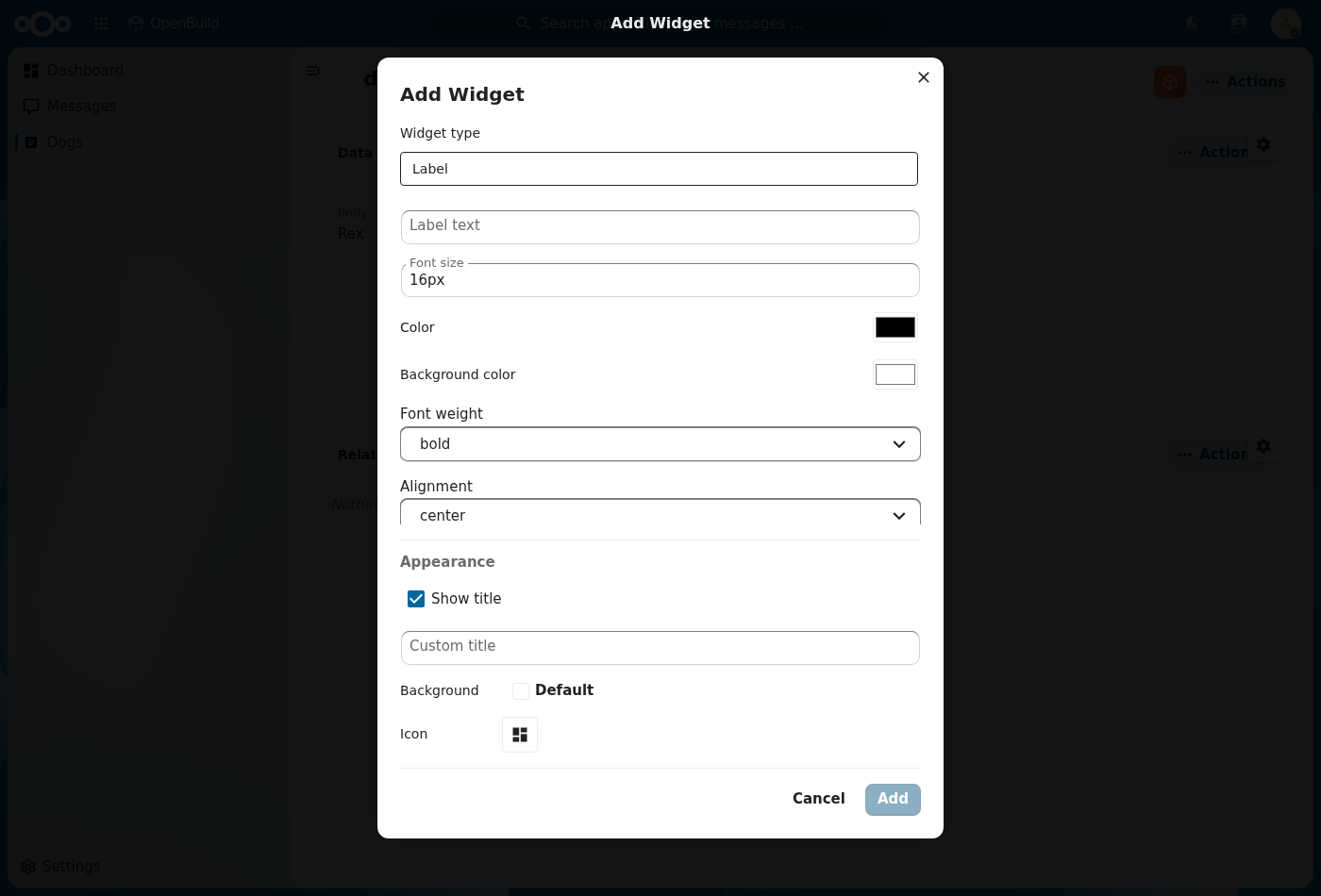
Add a widget. Click Edit with OpenBuild → Add widget…, pick a type (see the Widgets reference), set its appearance, and confirm. The new widget drops into the grid.
-
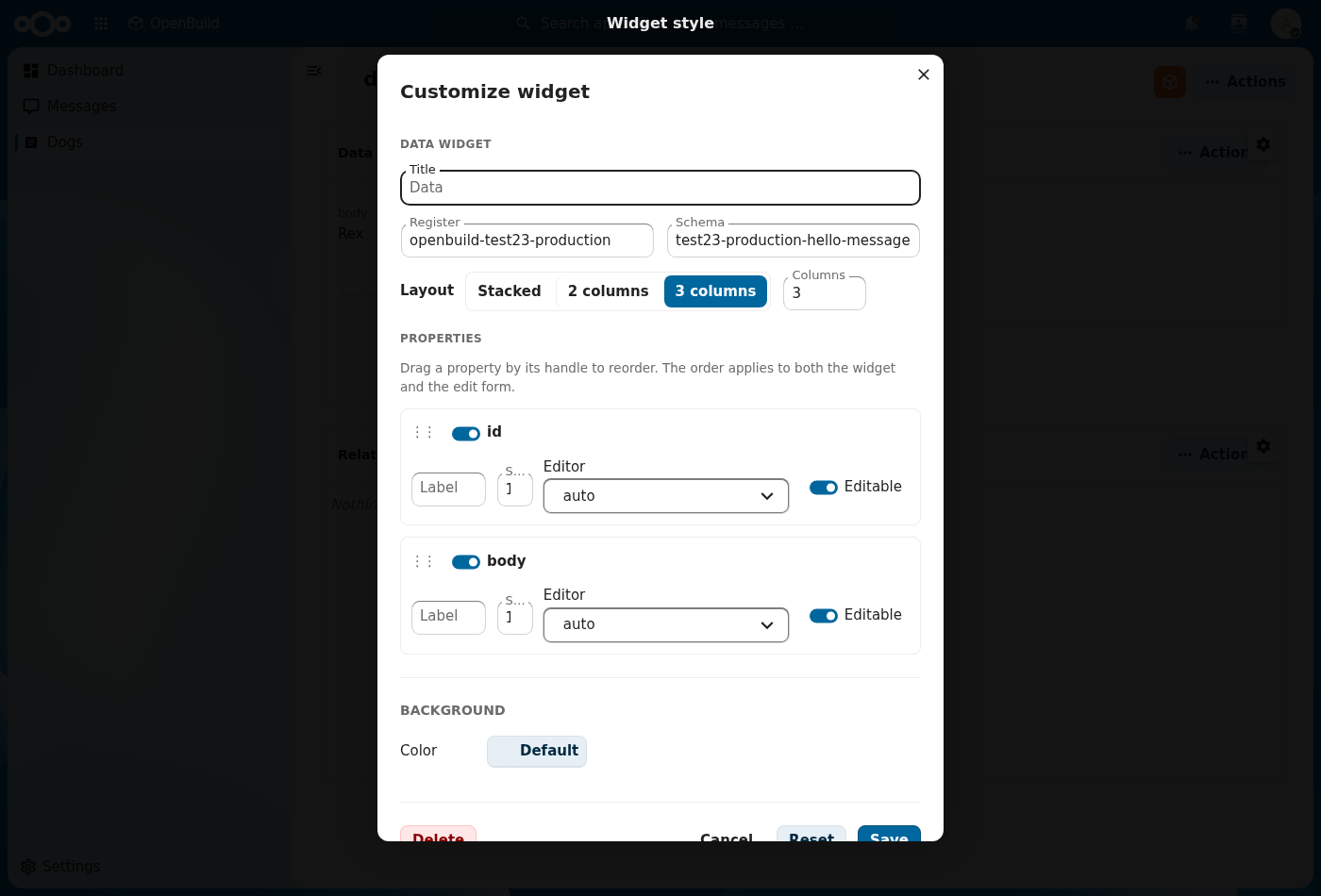
Configure a widget. Click a widget's cog to open its config. For the Data widget you choose which properties show, their order and layout (Stacked / 2-col / 3-col), and per-field options — the same map drives both the inline display and the edit form.
-
Save. Click Edit with OpenBuild → Save page. Your changes are written into the app's manifest and the page renders them immediately. Cancel instead to discard the edit session.
Managing structure (pages, menu, data)
Beyond the current page, the same menu manages the whole app:
- Edit pages… — add a page, pick its type (
index/detail/dashboard/custom), bind a register + schema, and route it. - Edit menu… — add menu entries, choose the section, and reorder by drag-and-drop.
- Edit data… — create or pick the app's register and add/edit/remove its schemas, without leaving the app.
Verification
The edit went well when: the page leaves edit mode after Save page with your widgets in place, the widgets render their data without error, and reloading the page shows the same layout (the manifest persisted).
Common issues
| Symptom | Fix |
|---|---|
| Add widget… is greyed out | You're not in edit mode — click Edit page first. |
| A reload "asks to leave the page" | You have an unsaved edit session — Save page or Cancel before navigating. |
| A widget shows no data | Its register/schema (inherited from the page) has no records yet, or the widget's filter excludes them — add a record or widen the config. |
| The change disappeared after reload | You left edit mode with Cancel (or didn't Save page) — re-edit and Save page. |
Reference
- Widgets — every widget you can add and how to configure it.
- Design a schema — the data your pages read from.
- Connect external data — list rows from an external source.
- Preview the running app — see the app in its live shell.